Zodl (Mobile)
Welcome to the tutorial that will guide you through the process of connecting your Keystone hardware wallet with Zodl Wallet (Mobile) to manage your ZEC assets.
Preparation
- Cypherpunk Firmware version v2.0.2 or newer running on Keystone 3 Pro. (For firmware upgrade, please refer to this tutorial.)
- Zodl Wallet installed on your mobile phone.
Connecting Keystone with Zodl Wallet
On Keystone 3 Pro:
- Click the […] icon on the top right of the main page > [Connect Software Wallet].
- Choose [Zodl] to generate the QR code.
On Zodl Wallet:
To access the portal to connect Keystone 3 Pro, we need to first create a new wallet on Zodl Wallet.To protect your assets, do not scan any external QR codes that were not generated by your Keystone device.
Click [Create new wallet], then enter the Zodl default wallet homepage.
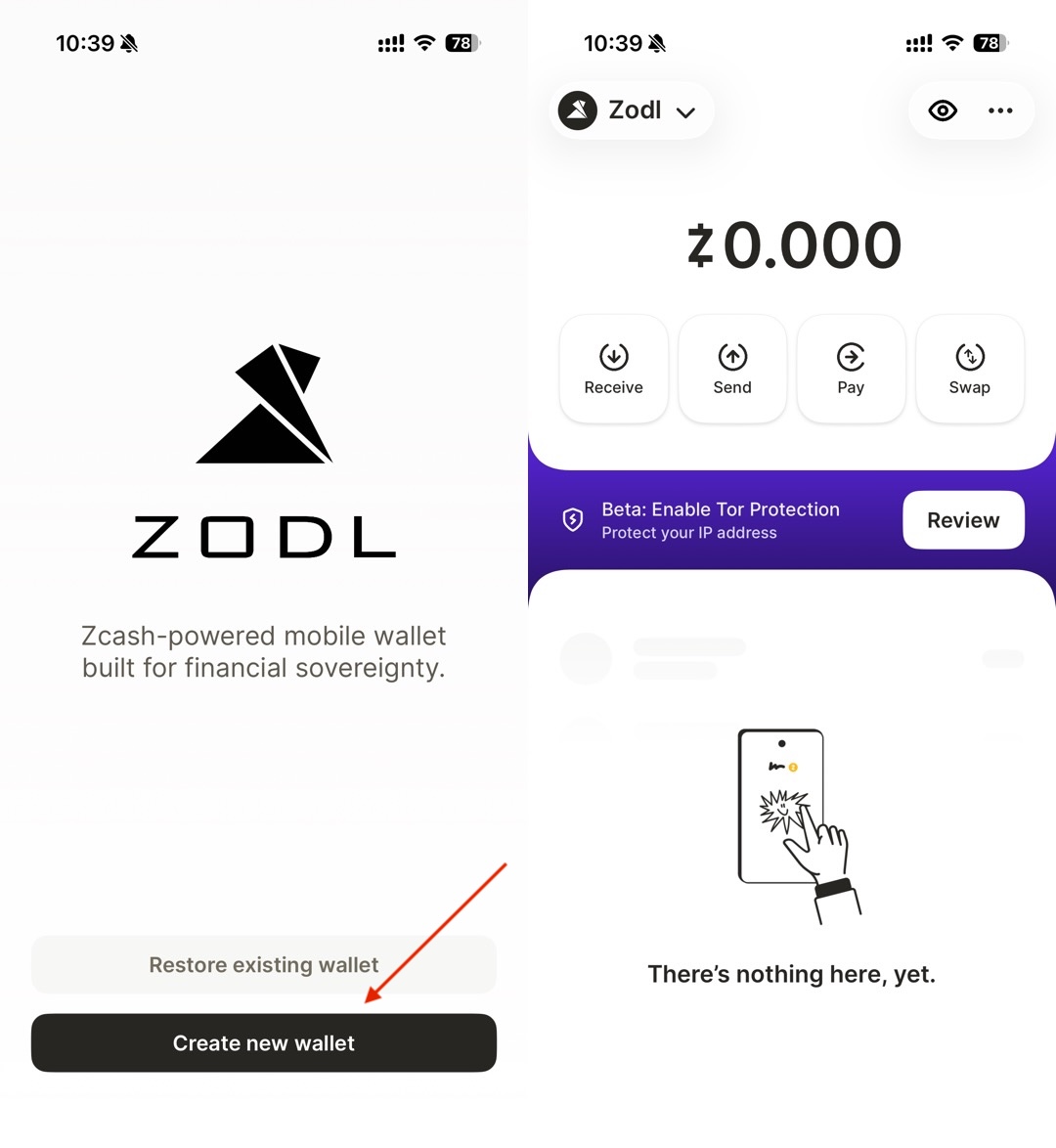
Open the menu from the button in the top-right corner of the homepage. Tap [Connect Keystone] → [Ready to Scan], allow Zodl Wallet to use the camera, and scan the QR code shown on your Keystone 3 Pro.
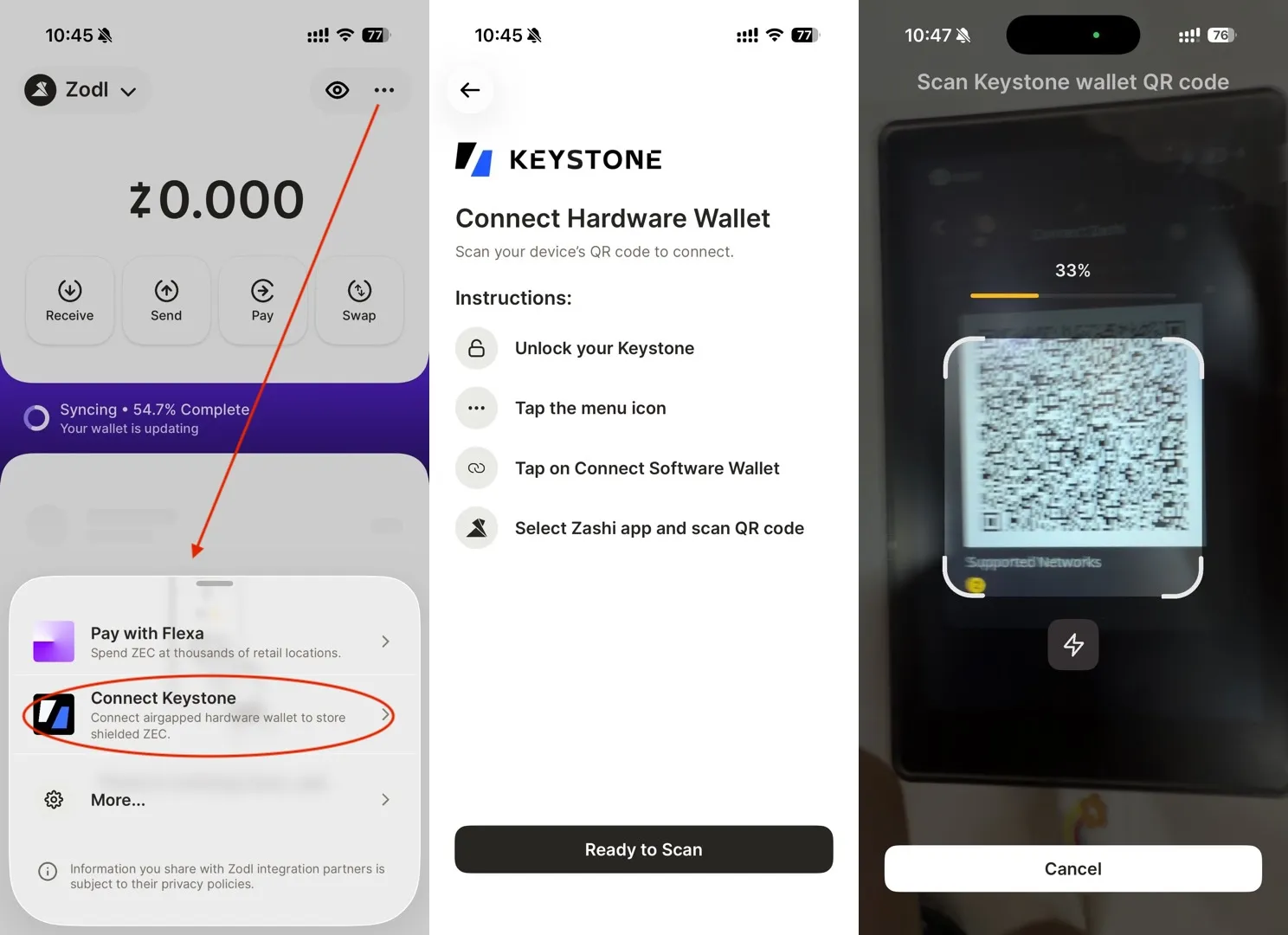
After scanning, tap [Connect] to complete the connection. You can then use features such as shielding ZEC transparent assets and privacy transactions.
Note: Keep Zodl Wallet open and allow time for blockchain sync so your balance and transaction history display correctly.
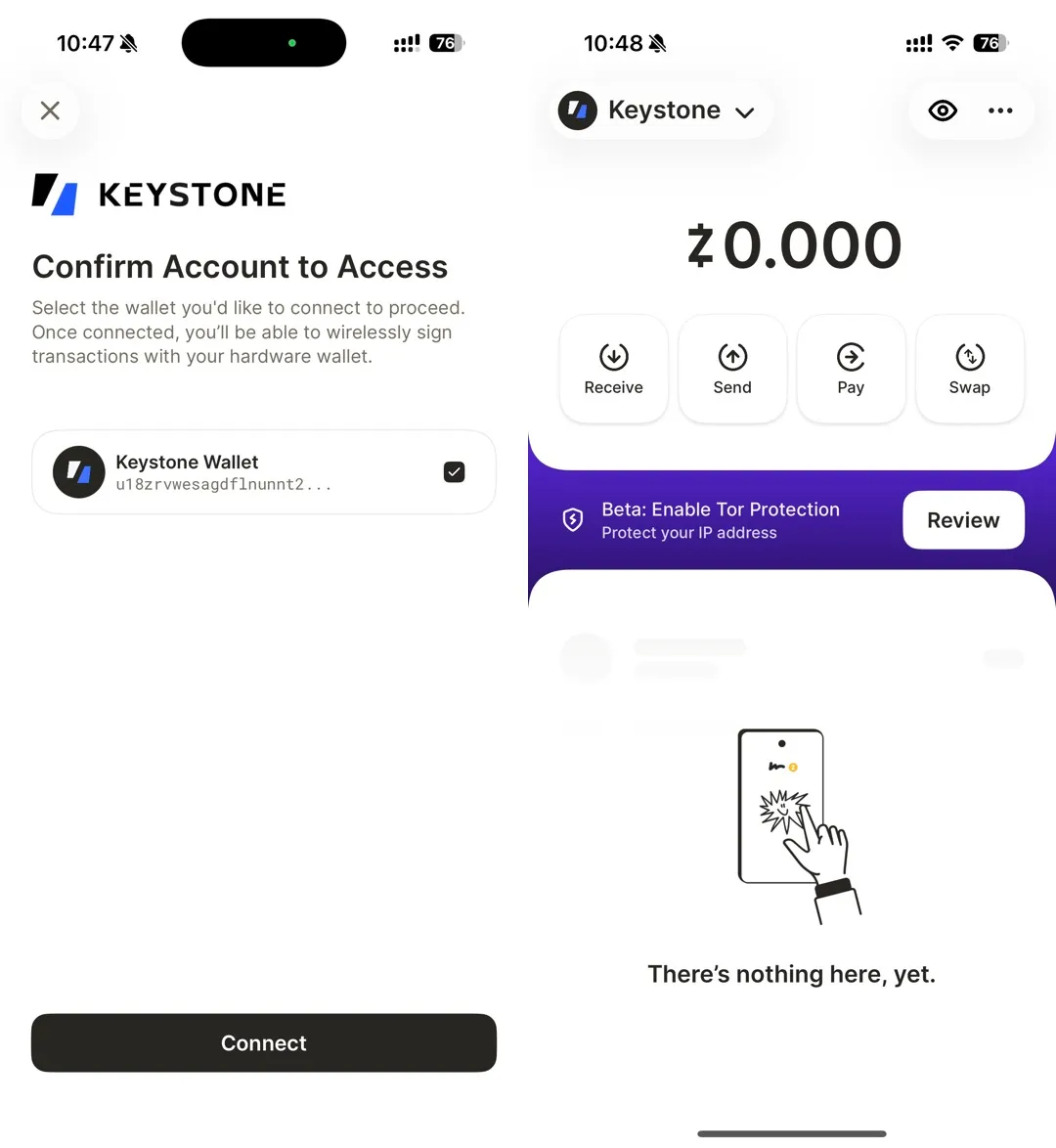
You can use the Cypherpunk firmware with the Zodl wallet to access Zcash Shielded Transactions. If you’re using the Multi-Coin firmware, you can also use Keystone Nexus to manage Zcash transparent address assets and send Zcash to exchange addresses.