Vizor (Desktop/Mobile)
Welcome to the tutorial that will guide you through the process of connecting your Keystone hardare wallet with Vizor Wallet (Desktop/Mobile) to manage your ZEC assets.
Preparation:
To protect your assets, do not scan any external QR codes that were not generated by your Keystone device.
- Run Cypherpunk firmware v2.5.0 or later on your Keystone 3 Pro. If you need to upgrade, please refer to the tutorial;
- Run Vizor Wallet on your mobile device.
Connect Keystone Hardware Wallet with Vizor Wallet
On Keystone 3 Pro:
- Tap the [...] icon in the upper-right corner of the home screen > select [Connect Software Wallet];
- Select [Vizor]. A QR code for connecting the wallet will be displayed.
On Vizor Wallet:
Tap [Connect Keystone] to enter the Vizor connection instructions page. When you are ready, tap [I’m ready now]
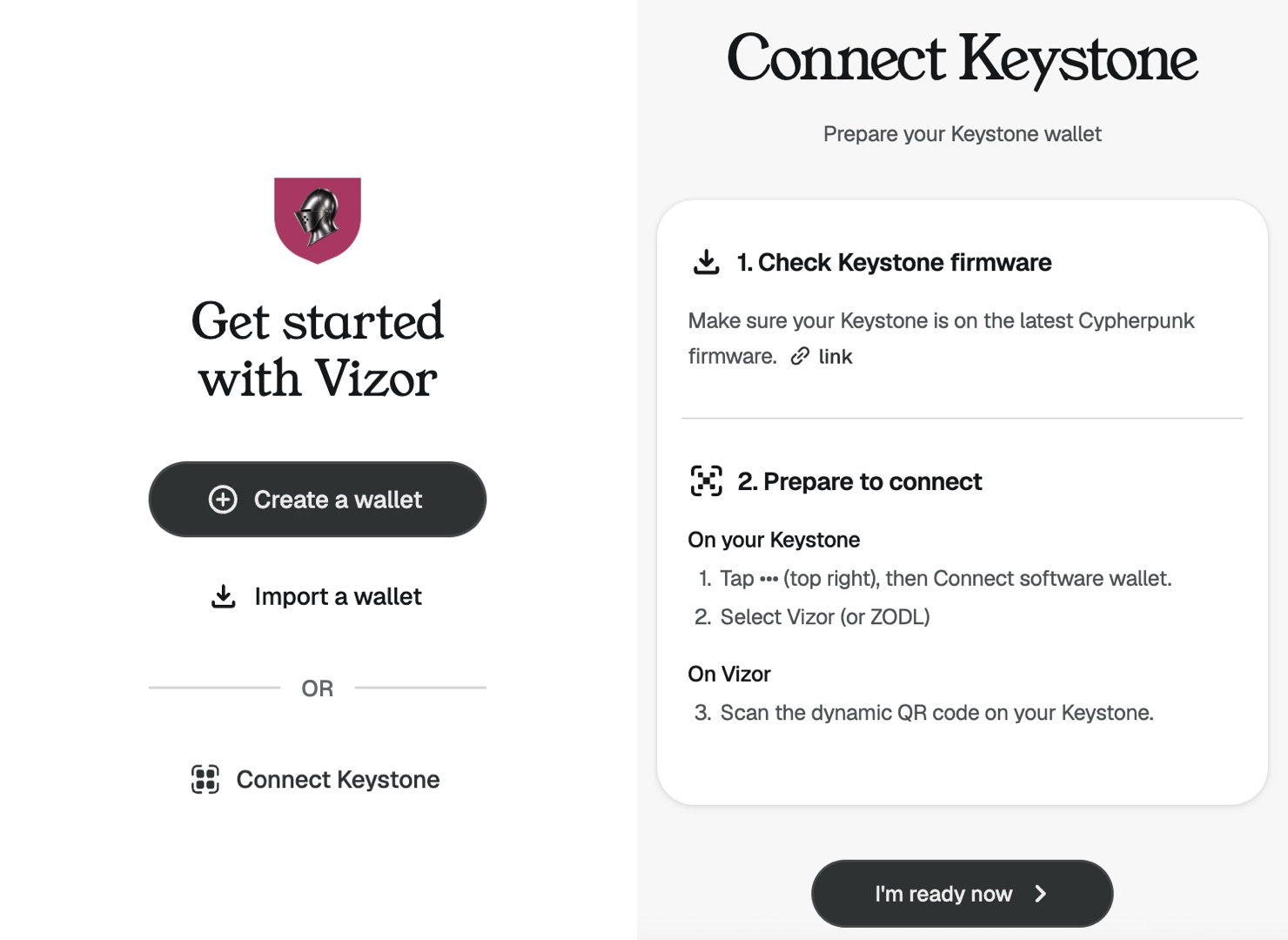
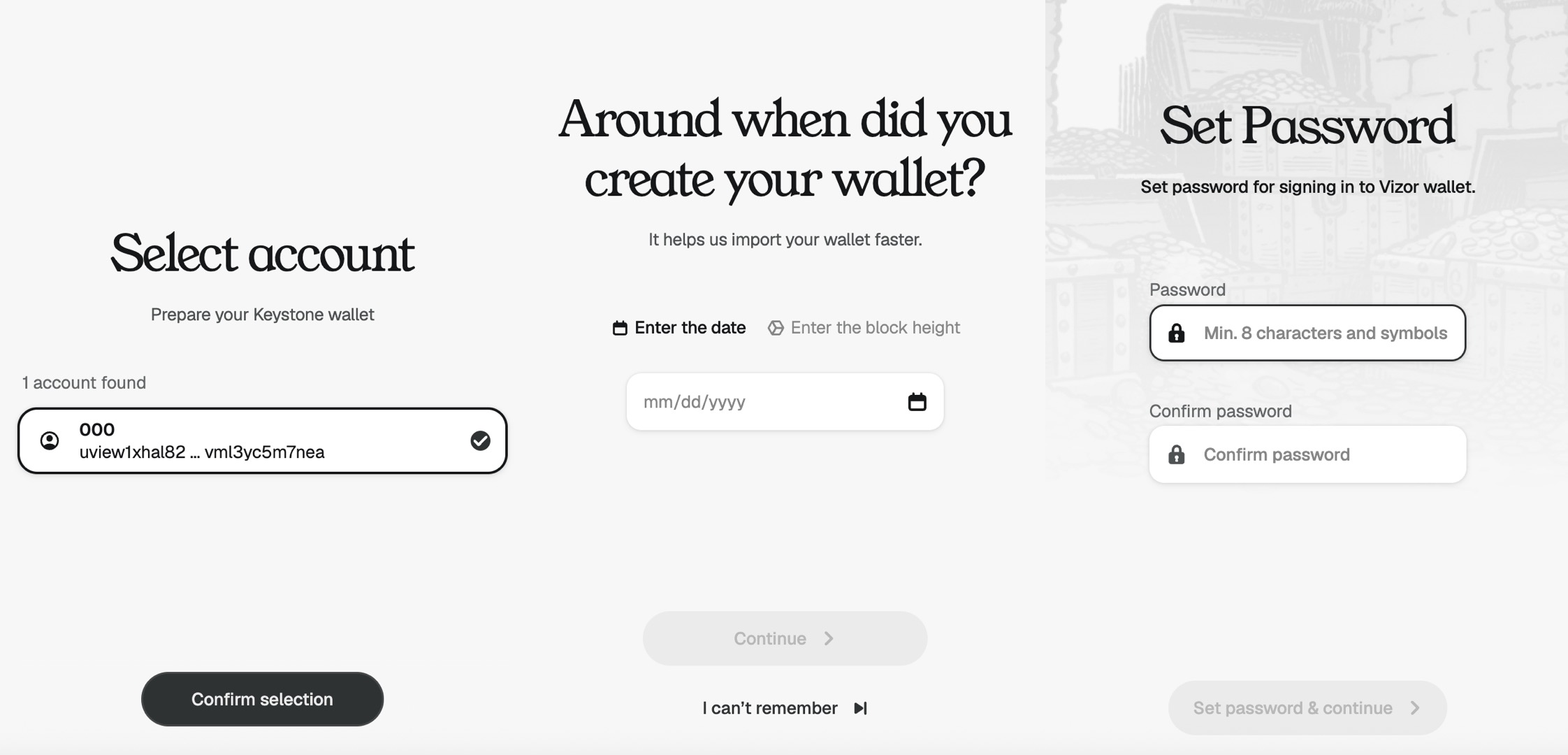
Allow Vizor to access your camera and scan the QR code displayed on your Keystone 3 Pro. Once the scan and connection are complete, tap [Confirm selection], then follow the instructions to enter the wallet creation time and set a password
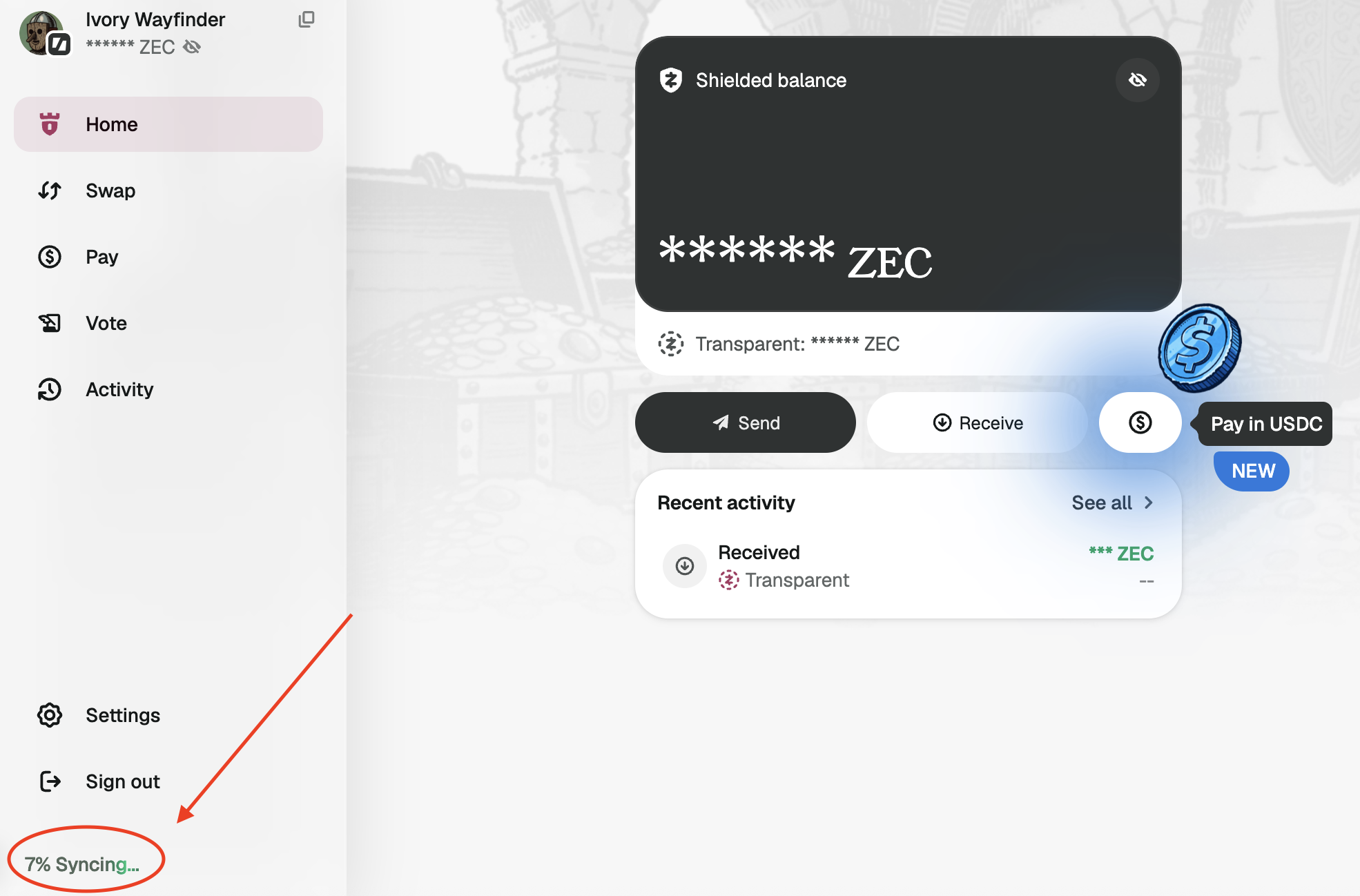
After completing the steps above, you can enter the home page. Your wallet synchronization progress will be displayed in the lower-left corner. During this time, you can explore features such as hiding transparent ZEC assets and Swap!
You can use the Cypherpunk firmware with the Vizor wallet to access Zcash Shielded Transactions. If you’re using the Multi-Coin firmware, you can also use Keystone Nexus to manage Zcash transparent address assets and send Zcash to exchange addresses.