Preparation
Before you begin, please ensure you meet the following requirements:
- The firmware version running on Keystone 3 Pro is 2.3.8 or later.
- The BULL app is installed on your mobile device. You can download it from BULL's official website.
Connecting Keystone with Bull
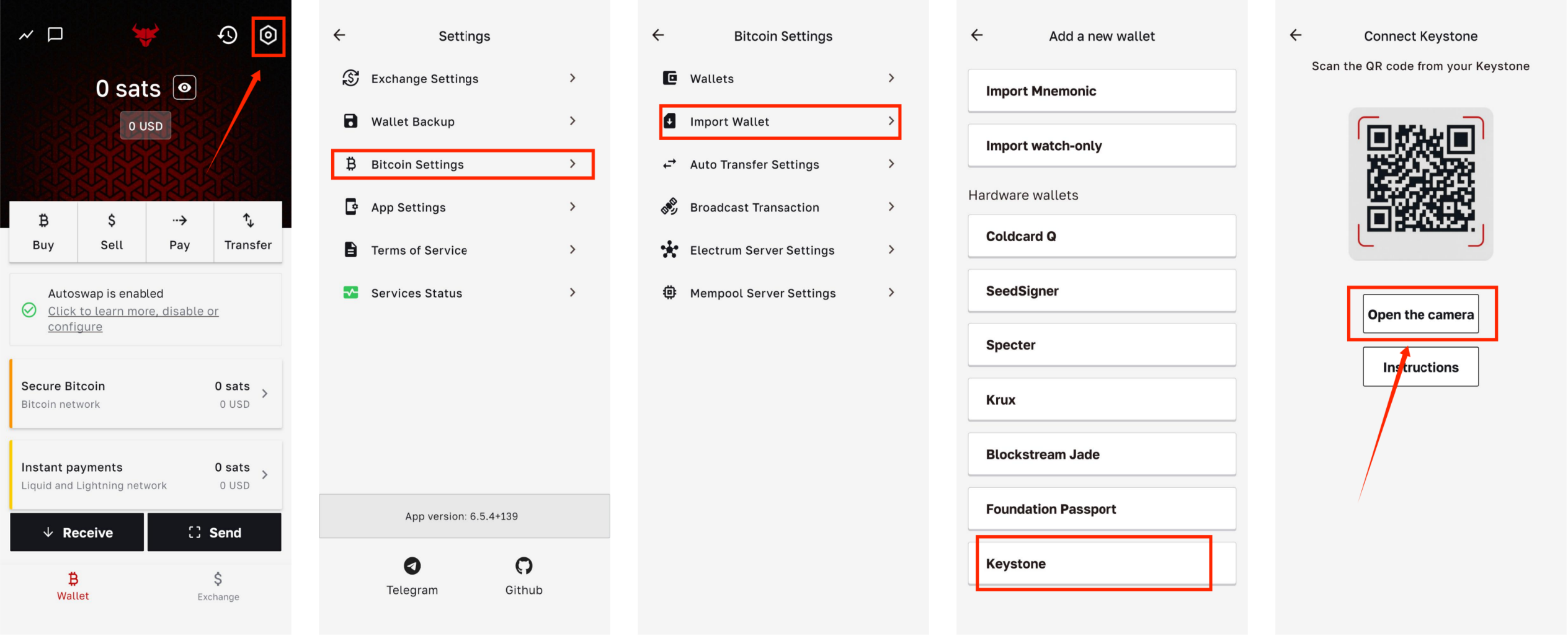
- Launch the BULL app. On the homepage, select [Settings] → [Bitcoin] → [Import Wallet] → [Keystone]→ [Open the Camera]
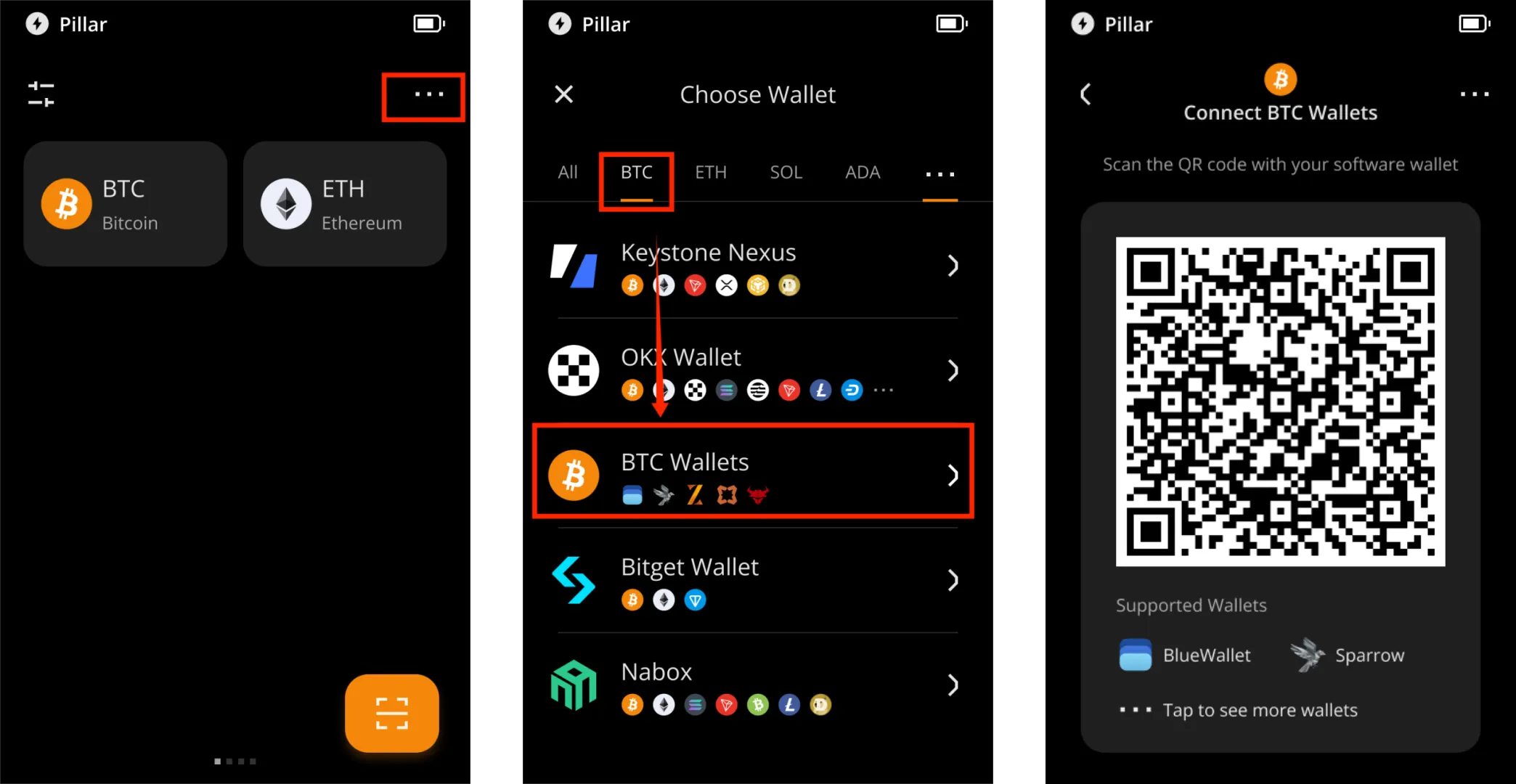
- On your Keystone device, tap the […] icon in the top-right corner → [Connect Software Wallet] → [BTC] → [BTC Wallets]
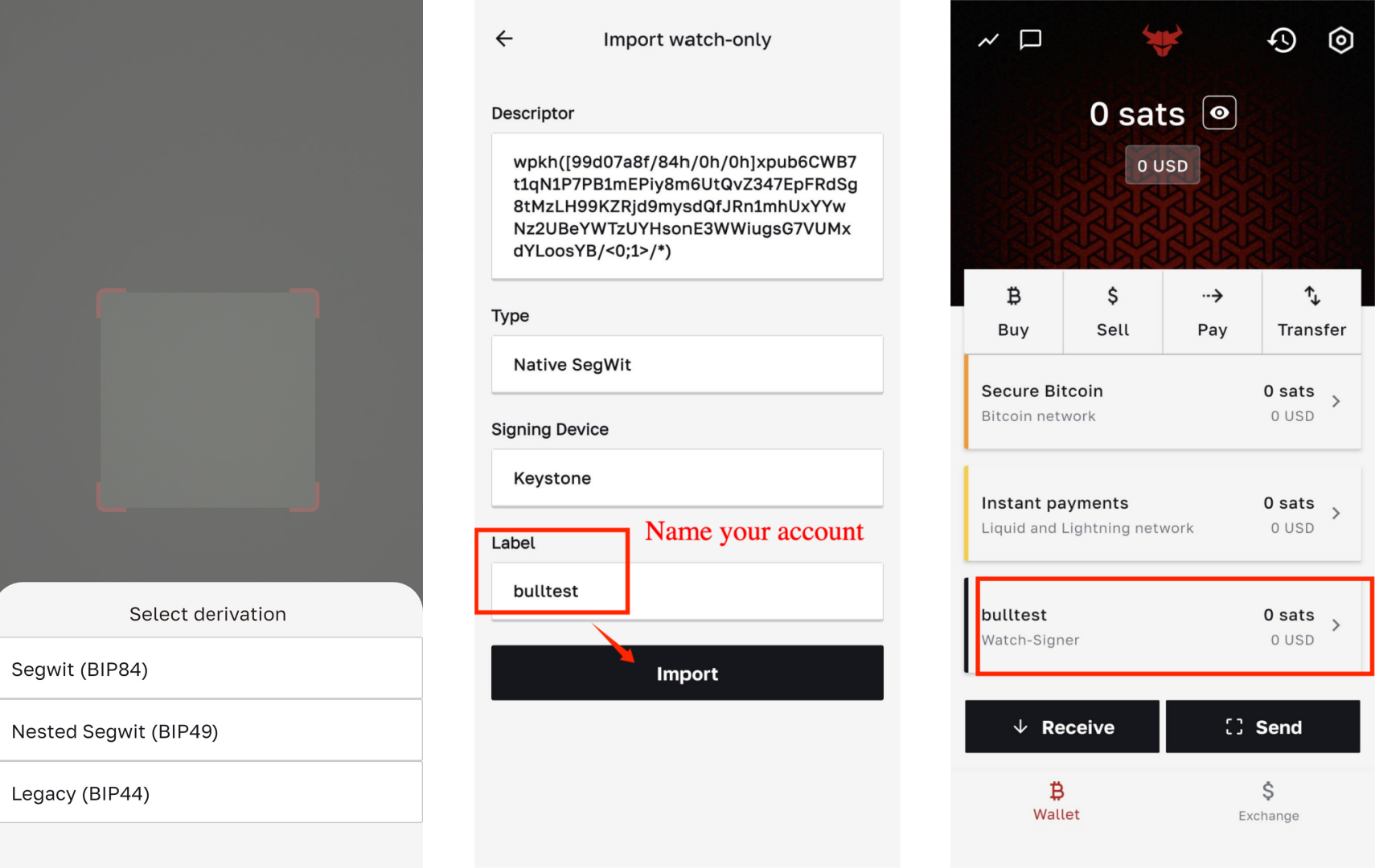
- Scan the QR code displayed on your Keystone device using the BULL mobile app. In the pop-up interface, select an address derivation path—this determines your Bitcoin address format and transaction efficiency. After choosing the derivation path, enter a name for your account in the [Label] field, then tap [Import]. Your account has been successfully created!
Security Note: To protect your assets, we recommend comparing the address displayed in BULL with the address generated on your Keystone 3 Pro device after the connection is complete, and making sure the two addresses match exactly. Also, do not scan any external QR codes that were not generated by your Keystone device.
Signing Transactions
Primary Operations on BULL:
- Launch the BULL app and select the account from which you wish to send funds.
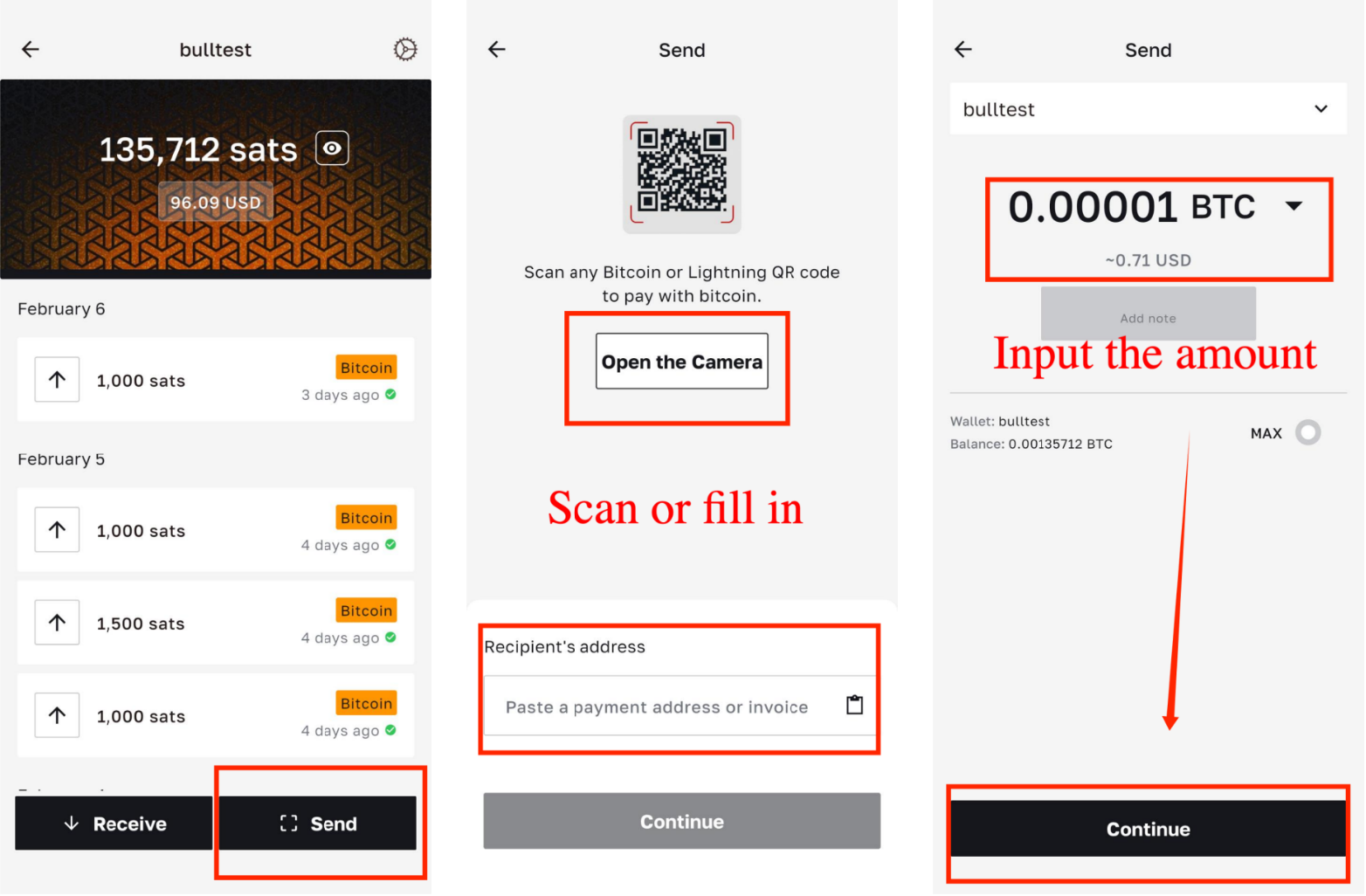
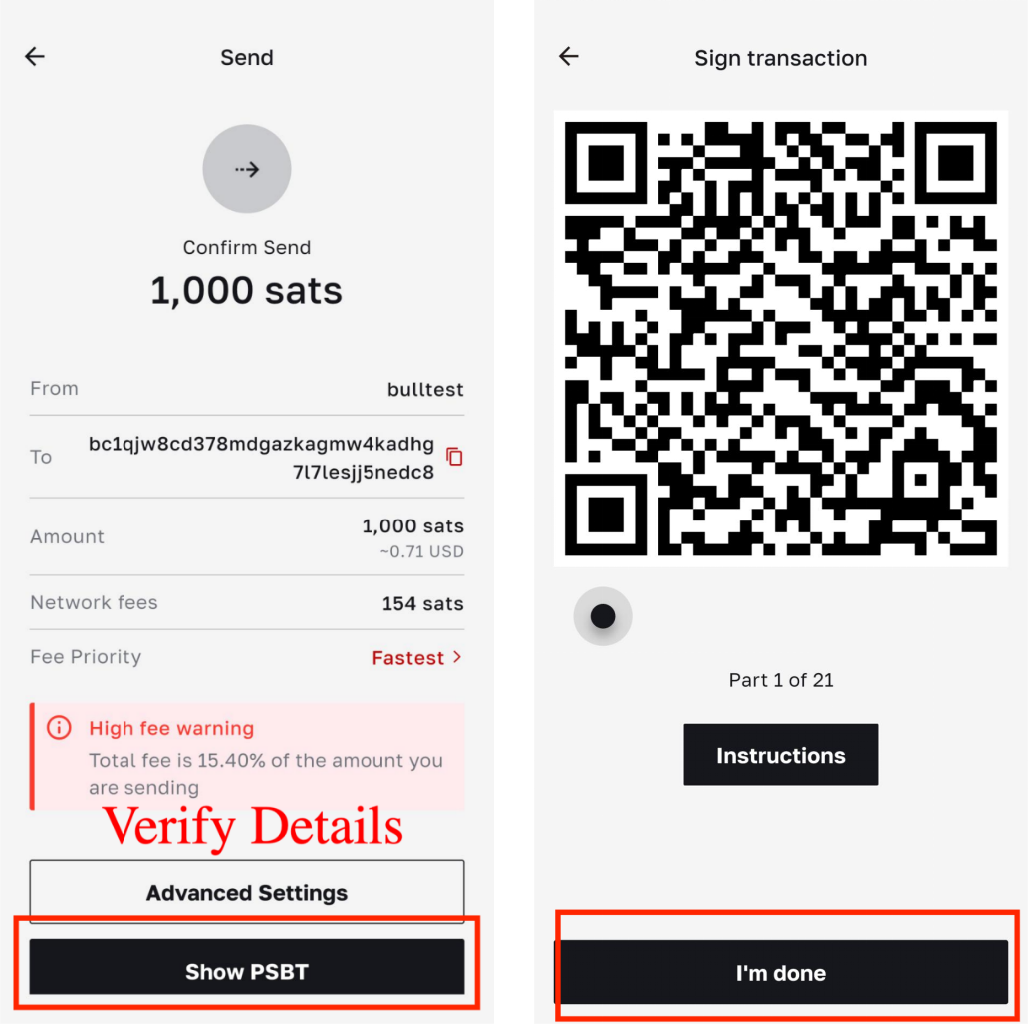
- Tap Send, scan the QR code of the recipient account or paste the recipient address, and enter the transaction amount. After confirming the recipient address and amount, a dynamic PSBT QR code will be generated on the page. Please use your Keystone device to complete the signature. Operation Path: [Send]→[Open the Camera] / [Paste a payment address or invoice] → Input the amount → [Continue] → [Show PSBT] → [I'm done]
On Your Keystone Hardware Wallet:
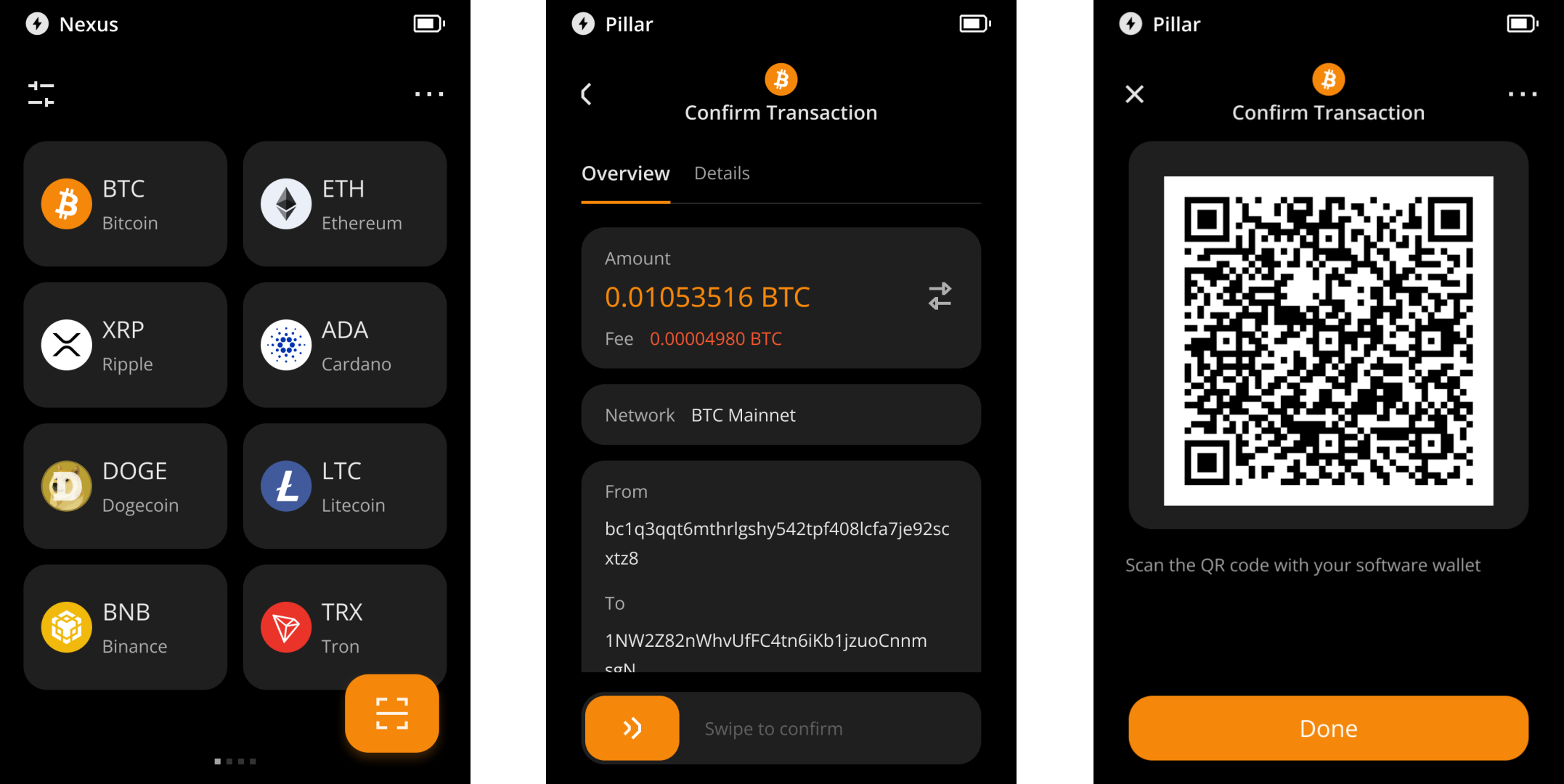
- Tap the scan button.
- Scan the QR code displayed on BULL. Keystone will decode the transaction into an easy-to-read format and display the actual transaction details on your software wallet.
- Verify the information and swipe to sign. After entering your passcode, a new QR code will be generated.
Return to the BULL App:
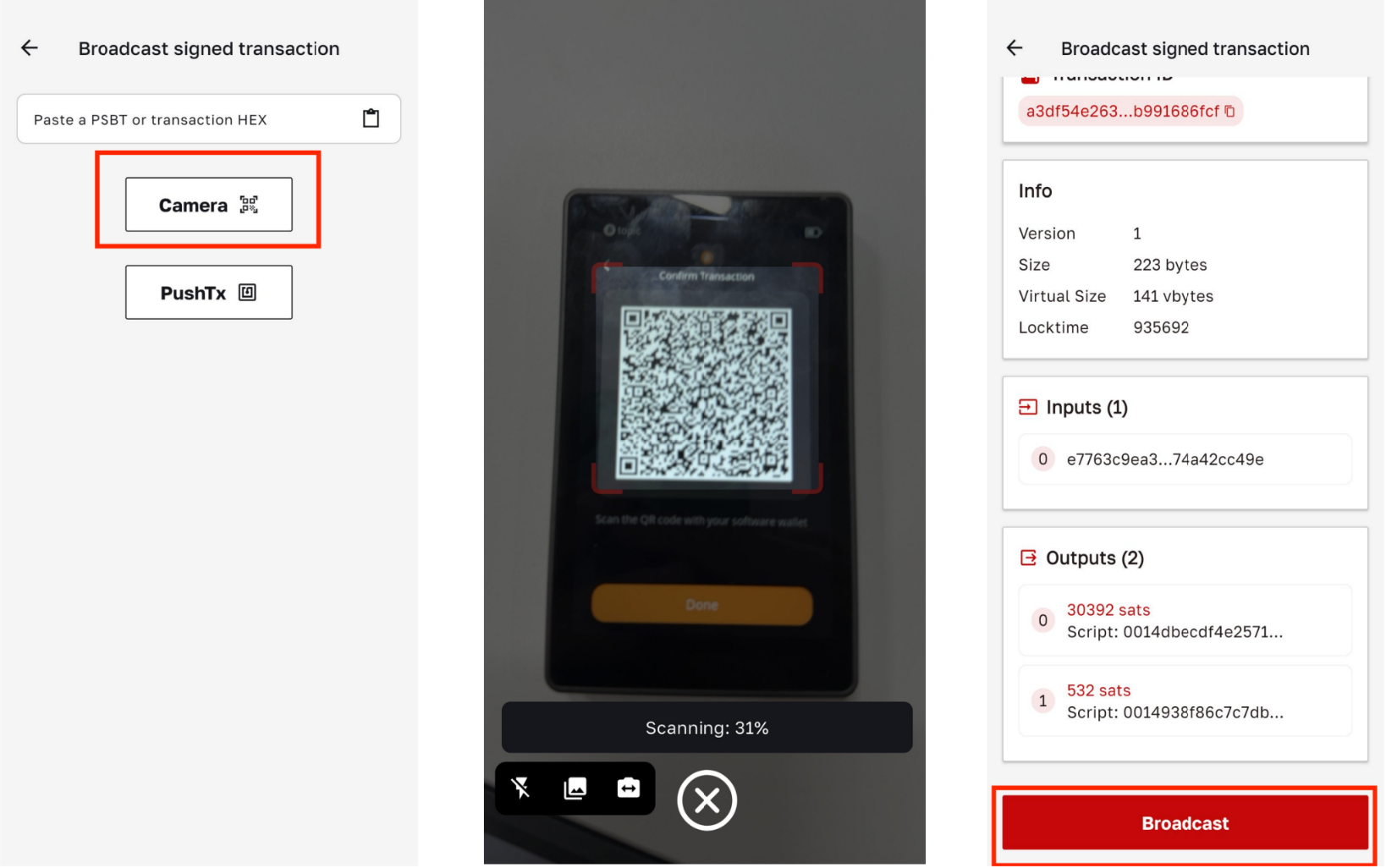
- The BULL app will prompt you to scan the QR code displayed on your Keystone device. Proceed with the scan.
- The transaction will be imported into the BULL wallet.
- You may now broadcast the transaction! After tapping "Broadcast", the transaction will be submitted to the Bitcoin network and the funds will be transferred. Operation Path: [Camera] → Scanning → [Broadcast]
BTC-only & Cypherpunk firmware: Connecting BULL to Keystone
This guide will walk you through the setup for BTC-only & Cypherpunk firmware to work seamlessly with BULL, enabling the secure management of your cryptocurrencies.
1. Preparation
- Ensure your Keystone 3 Pro is running firmware version 2.3.8-BTC/2.3.8-CYPHERPUNK or later. If not, follow the instructions in Firmware Upgrade.
- Install and set up the BULL app on your mobile device.
2. Connecting Keystone to BULL
On Your Keystone Hardware Wallet:
- Tap the "..." icon in the top-right corner, then select Connect Software Wallet.
- Choose BULL from the options, and a QR code will be displayed.
On Your BULL Wallet:
Launch BULL App and Enter the Camera Scanning Page
Open the BULL mobile app. On the homepage, tap [Setting]→[Bitcoin]→[Import Wallet]→[Keystone] in sequence, then tap [Open the camera] to keep it ready for scanning.
Find BULL on Keystone Device
On your Keystone, tap the […] in the top-right corner of the device screen, then select [Connect Software Wallet]→[BULL]. It will display the connection QR code.
Scan the QR Code and Select the Bitcoin Address Derivation Path
Use the BULL app to scan the QR code displayed on your Keystone device. After successful scanning, select the corresponding path based on your needs on the address derivation path selection interface popped up in the app.
Set an Account Label and Complete Wallet Import
After selecting the path, enter a custom account name in the [Label] input field of the BULL app, then tap [Import]. The wallet import and account creation are completed when the success prompt appears on the page.
3. Using BULL
A. Receiving Bitcoin
You can receive Bitcoin using the receiving address displayed on either your Keystone hardware wallet or BULL wallet.
- Display Address on Keystone:
- Tap the BTC icon on your Keystone, and your receiving address will be displayed.
- Display Address on BULL:
- Navigate to the corresponding wallet and tap Receive to view the receiving address.
B. Sending Bitcoin
- In BULL, locate the account connected to your Keystone, then enter the receiving address and transaction amount in order.
- Unlock your Keystone device to sign.
- Tap Scan.
- Scan the QR code displayed in the BULL wallet.
- If you encounter scanning issues, try the following:
- Increase your device’s screen brightness
- Move the red laser up and down over the QR code
- Slightly move the device backward
- Once the transaction is imported to Keystone, verify the recipient address and amount.
- Tap the button on your Keystone to sign the transaction.
- Keystone will display a new QR code.
- Tap I'm done in the BULL Bitcoin wallet.
- The BULL Bitcoin wallet will prompt you to scan the QR code on Keystone; proceed with the scan.
- The transaction will be imported to the BULL Bitcoin wallet.
- You may now broadcast the transaction! After tapping Broadcast, the transaction will be submitted to the Bitcoin network, and the funds will be sent.
By following the steps above, you can seamlessly send and receive Bitcoin using BULL and your Keystone 3 Pro hardware wallet.