Gero Wallet (Extension)
Welcome to this tutorial, which will guide you through the process of connecting your Keystone hardware wallet to the Gero Wallet extension. In this tutorial, you will learn how to establish the connection and explore the basic functions of the Gero Wallet. Let's get started!
Supported Chain: Cardano
Features: Staking, Swap, Perpetuals, Cash back, Governance, Security, NFT Gallery
Step 1: Preparation for Connection
- A Keystone 3 Pro hardware wallet.
- Please ensure your Keystone wallet is upgraded to firmware version 2.3.8 or higher.
- Download the latest version of the Gero Wallet browser extension.https://chromewebstore.google.com/detail/gero-dashboard/bgpipimickeadkjlklgciifhnalhdjhe
Step 2: Connect to Gero Wallet
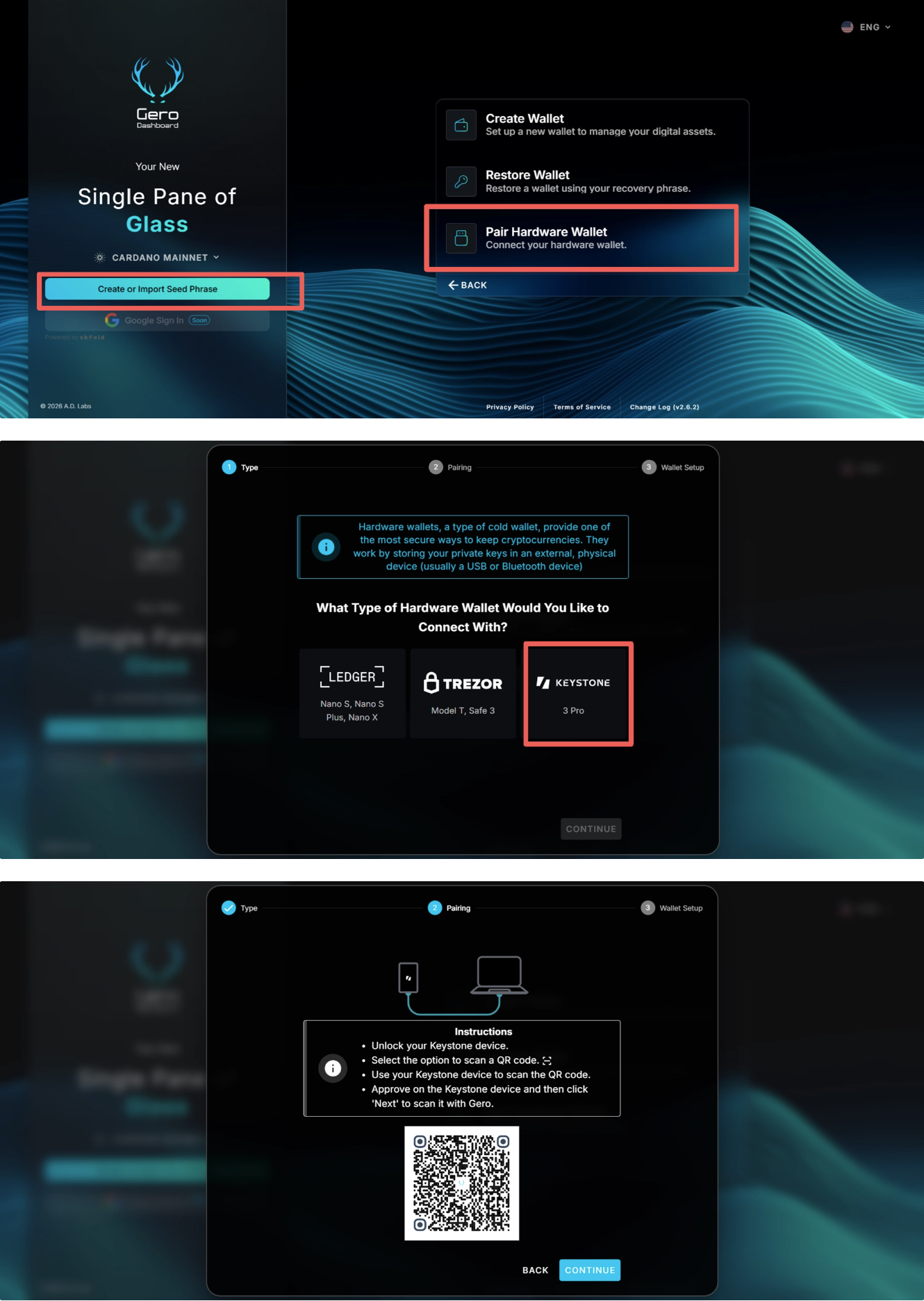
On the web page: Open the Gero Wallet browser extension, select [ Creat or Import Seed Phrase ] > [ Pair Hardware Wallet ] , choose [ KEYSTONE ] , and the web page will display a QR code.
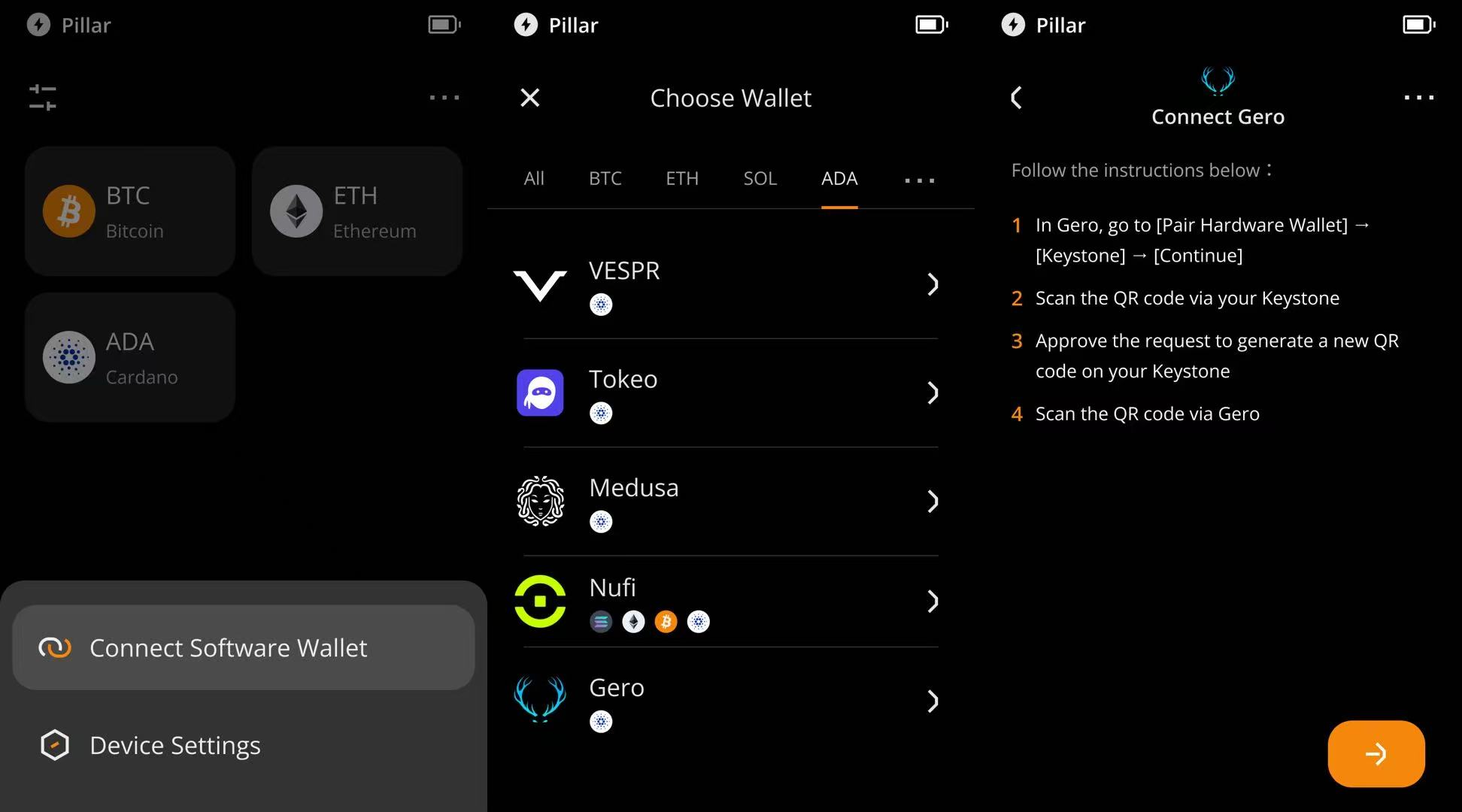
On Keystone: Tap the [...] icon in the upper right corner of the home screen, select [ Connect Software Wallet ] , and then choose [ Gero ].
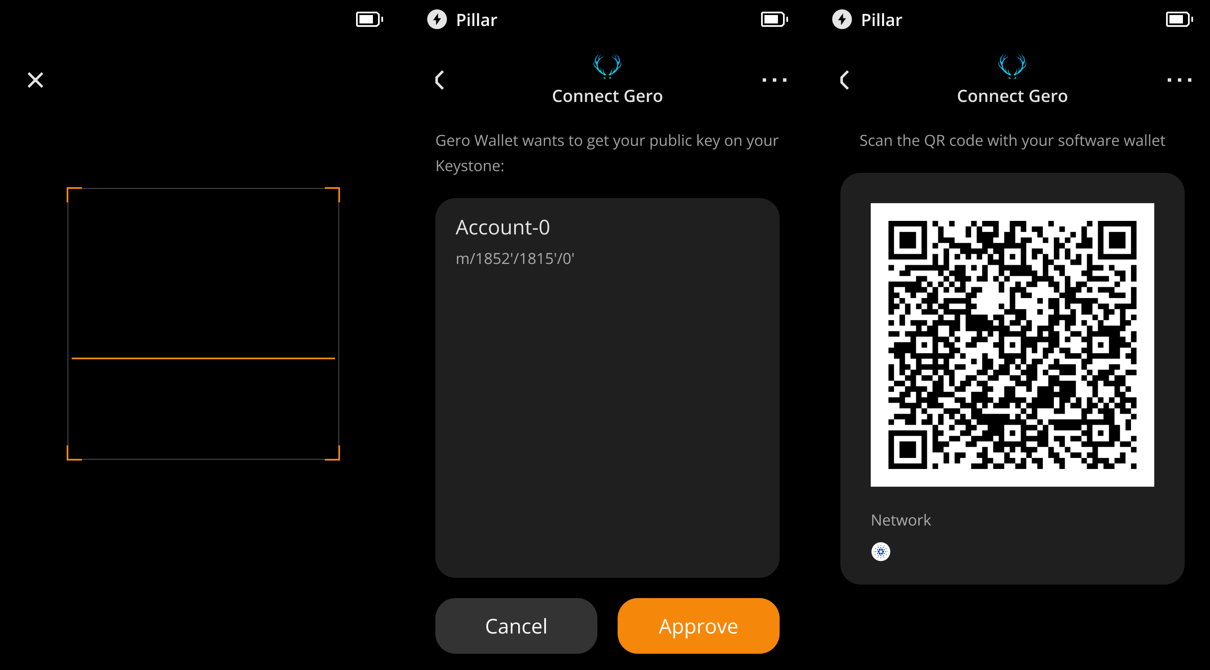
On Keystone: Scan the QR code displayed on the webpage, tap [ Approve ] , and your device will then display a QR code.
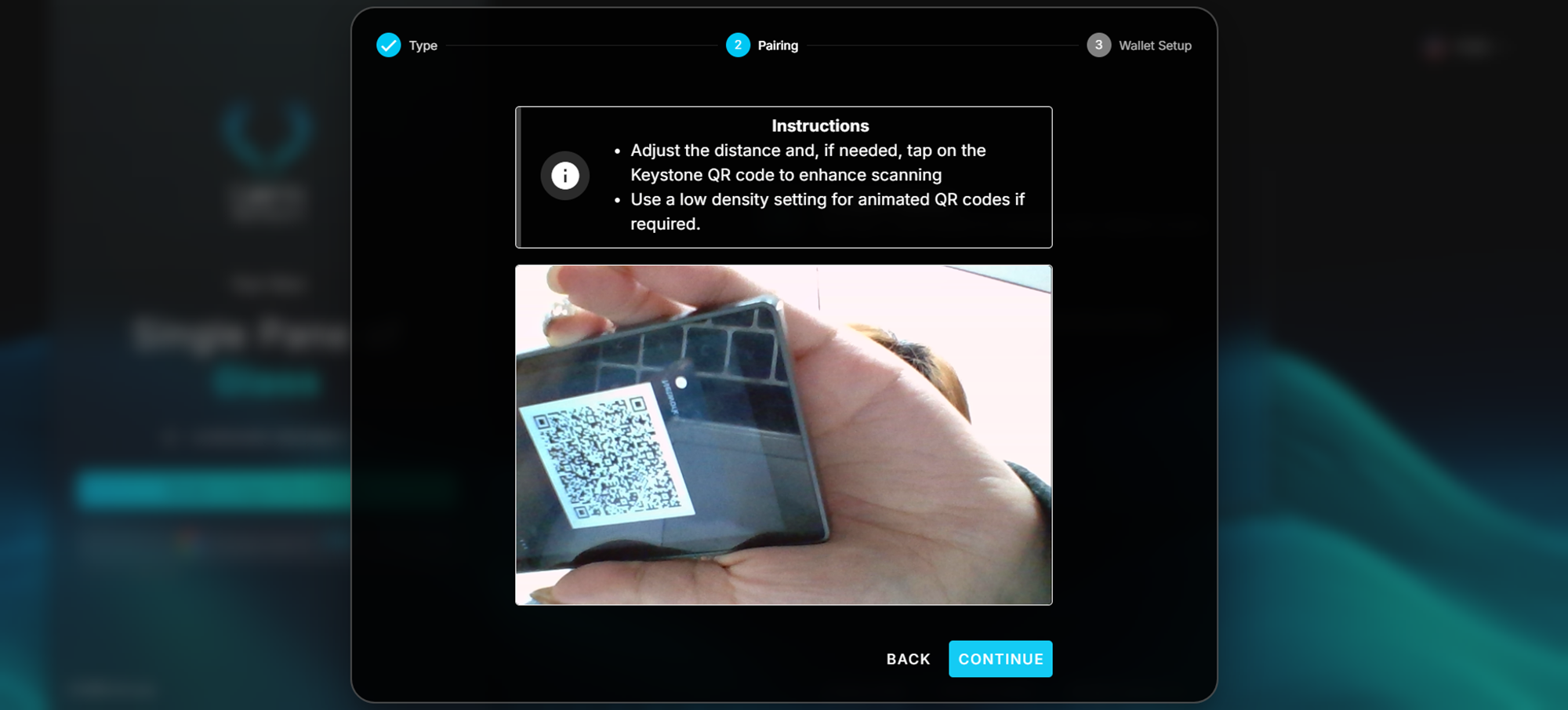
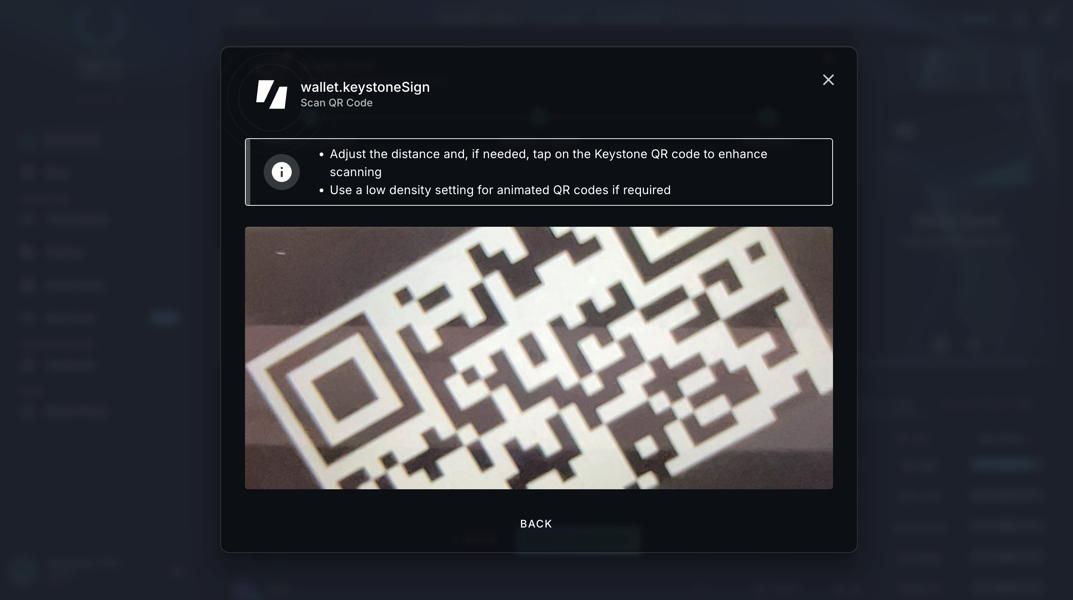
On the webpage: Click [ CONTINUE ] and use your computer's camera to scan the QR code on your Keystone device.
On the webpage: Agree to the terms of service and click [ CONTINUE ] .
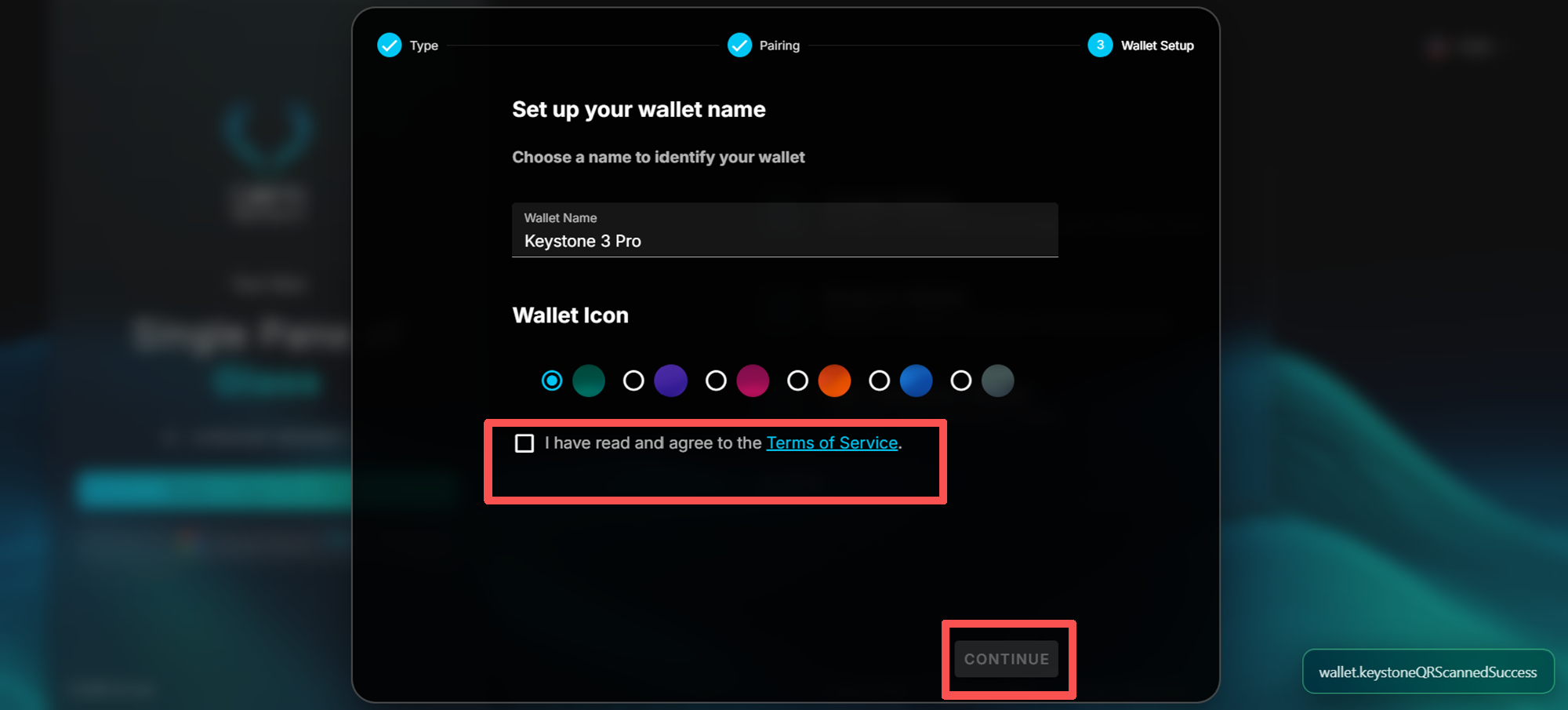
Done! Your Keystone hardware wallet is now successfully connected to Gero Wallet.
Security Note: To protect your assets, we recommend comparing the address displayed in Gero with the address generated on your Keystone 3 Pro device after the connection is complete, and making sure the two addresses match exactly. Also, do not scan any external QR codes that were not generated by your Keystone device.
Step 3: Send ADA
On Gero Wallet:
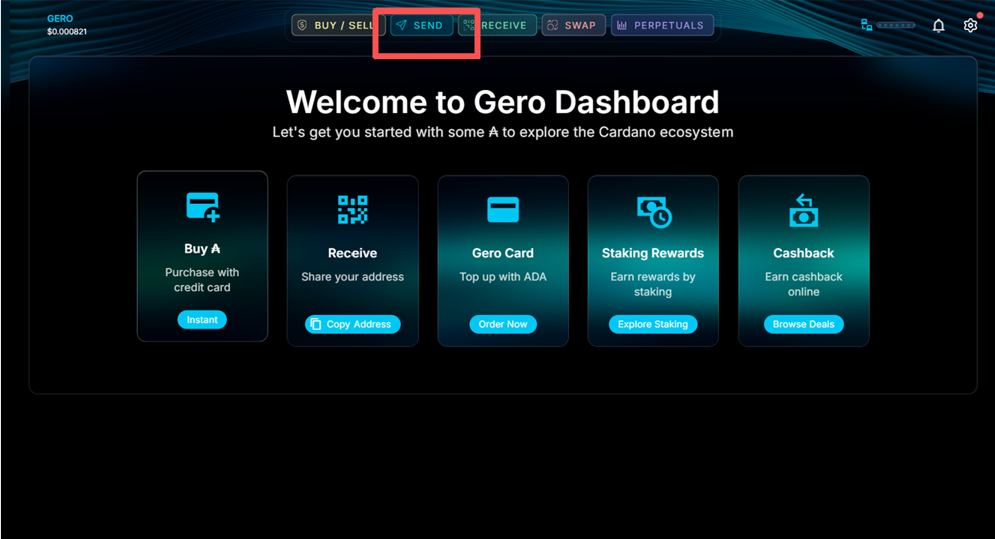
On the Gero homepage, locate [ SEND ] and initiate a transaction.
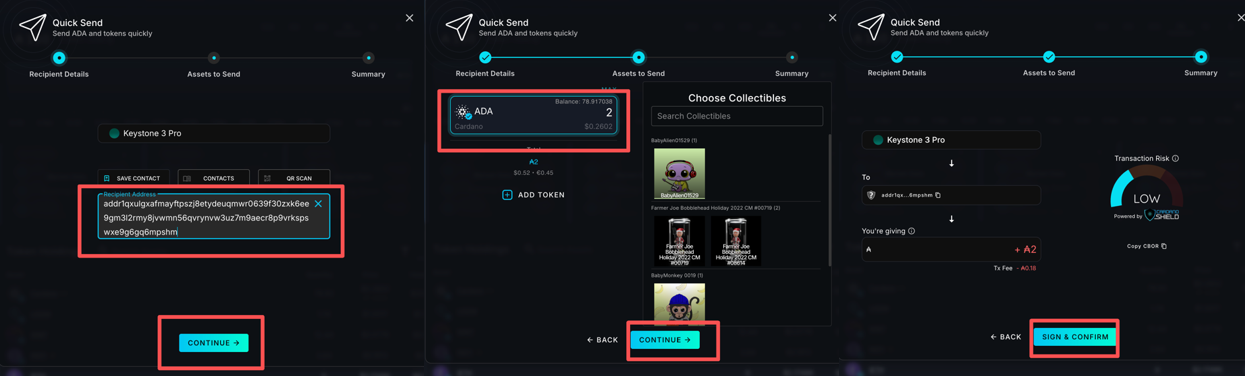
Fill in the recipient's address and the transaction amount. The webpage will display the transaction details. Click [ SIGN & CONFIRM ] .
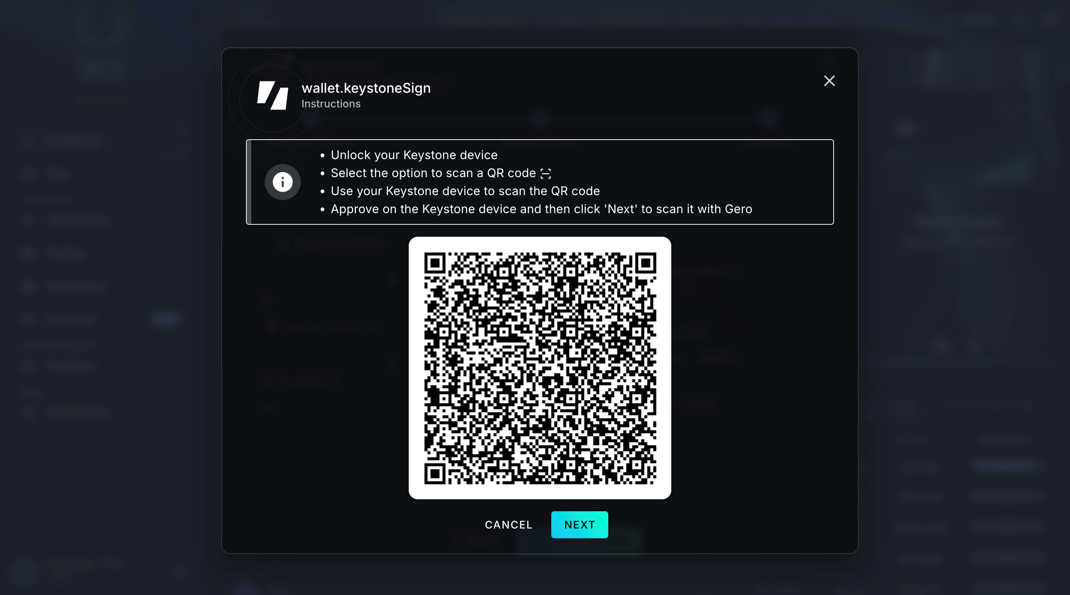
The webpage will then generate a QR code.
On Keystone:
Use your Keystone to scan the QR code displayed on Gero. At this point, Keystone will decode the QR code content and display the actual transaction details. Please verify the amount and the recipient's address.
After entering your Keystone password or using your fingerprint to sign the transaction, a QR code containing the signed transaction authorization will be generated.
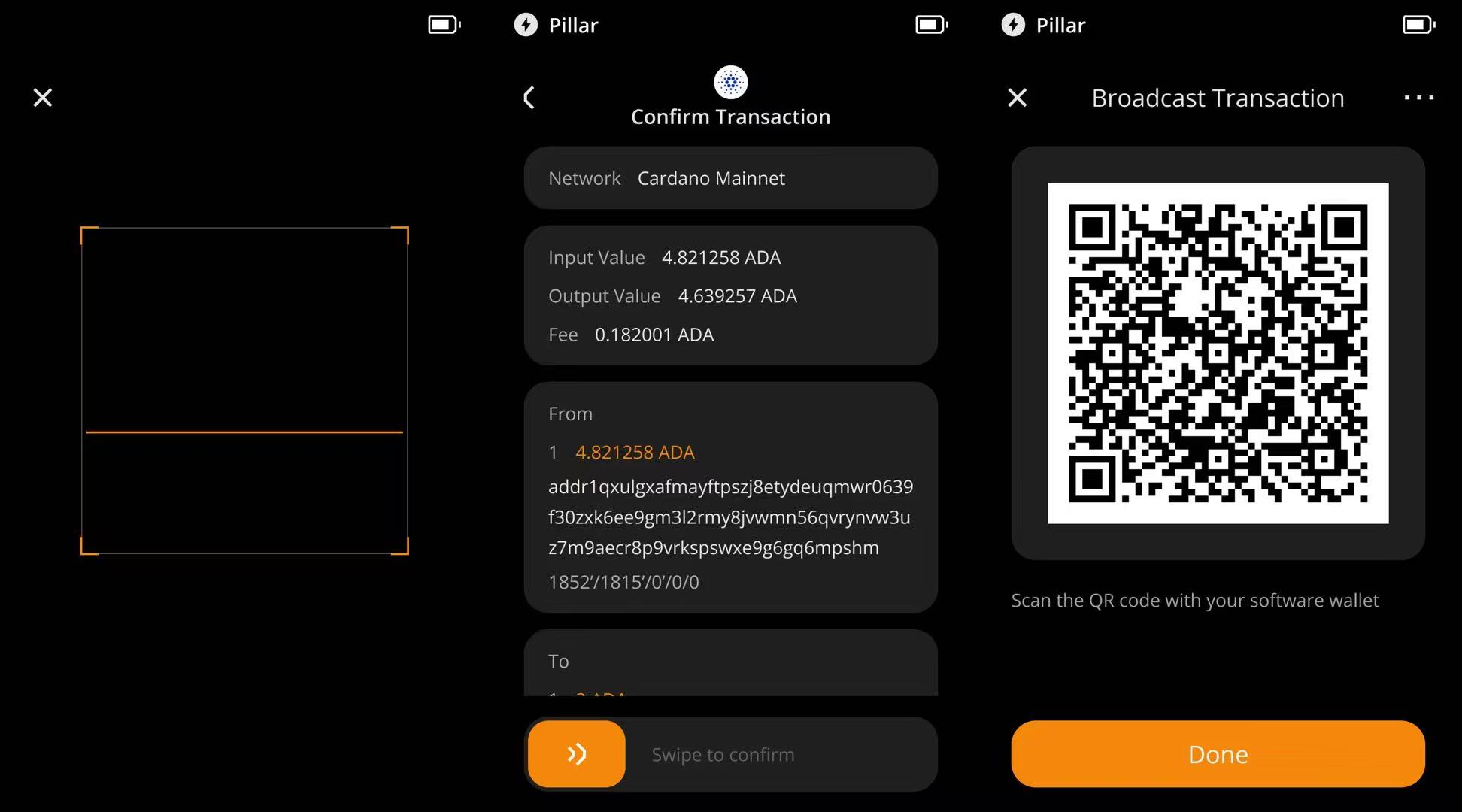
On the webpage, click [ NEXT ] and scan the QR code on your Keystone device to broadcast this transaction.
You have successfully sent a Cardano transaction using Keystone and Gero!
Once your Keystone is connected to Gero, you can easily send funds. As a hardware wallet, Keystone secures your assets, and all transactions associated with it require Keystone's signature. Additionally, you can explore and utilize Gero's various online features to meet your basic needs.