Lace (Extension/Mobile)
This tutorial will guide you through using the Lace extension with your Keystone hardware wallet to manage your Cardano(ADA) and Bitcoin(BTC) assets.
Preparation:
- Run firmware version v3.0.4 or later on your Keystone 3 Pro. If you need to upgrade, please refer to the tutorial;
- Run Lace on the web.
Connect Your Keystone Hardware Wallet to Lace
Manage ADA Assets via Lace
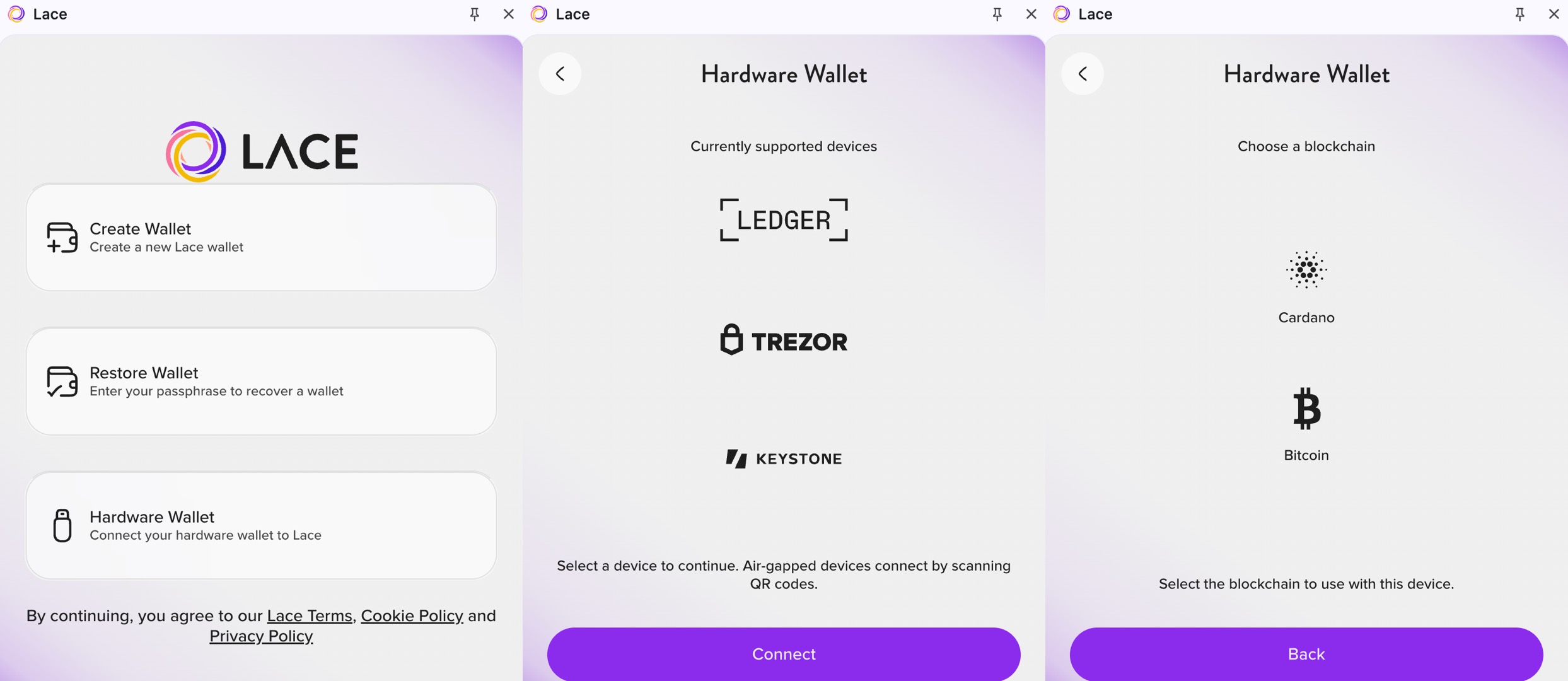
On Lace:
- Click [Hardware Wallet]
- Select [Keystone]
- Select the Cardano blockchain to manage your ADA assets
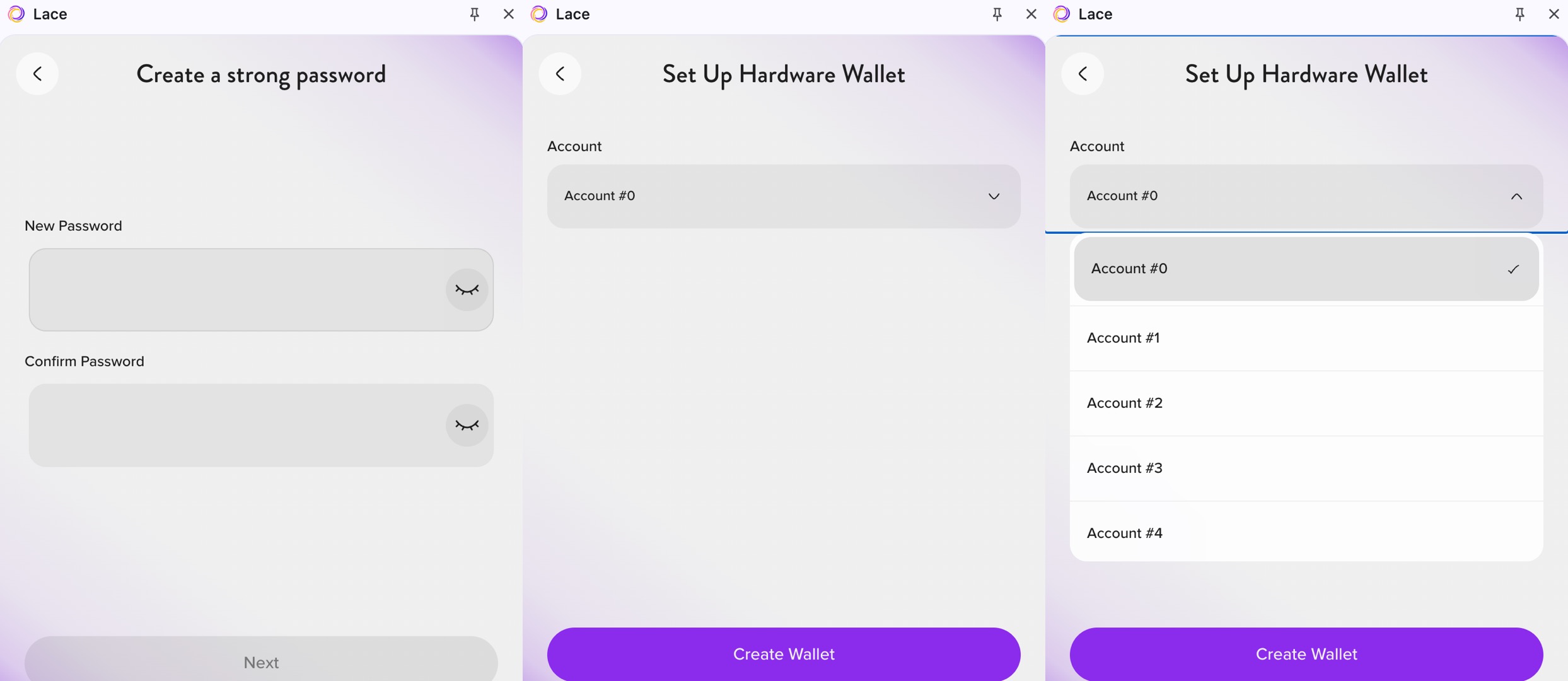
- Set a strong password for your Lace wallet to continue
- Select the account you want to manage and click [Create Wallet]. Lace will generate a QR code for your Keystone wallet to scan
On Your Keystone Hardware Wallet:
- Tap the scan button on the home screen and scan the QR code generated by Lace
- Tap [Approve] to authorize the connection (you can tap the upper-right corner to switch the derivation path), and a QR code will be generated
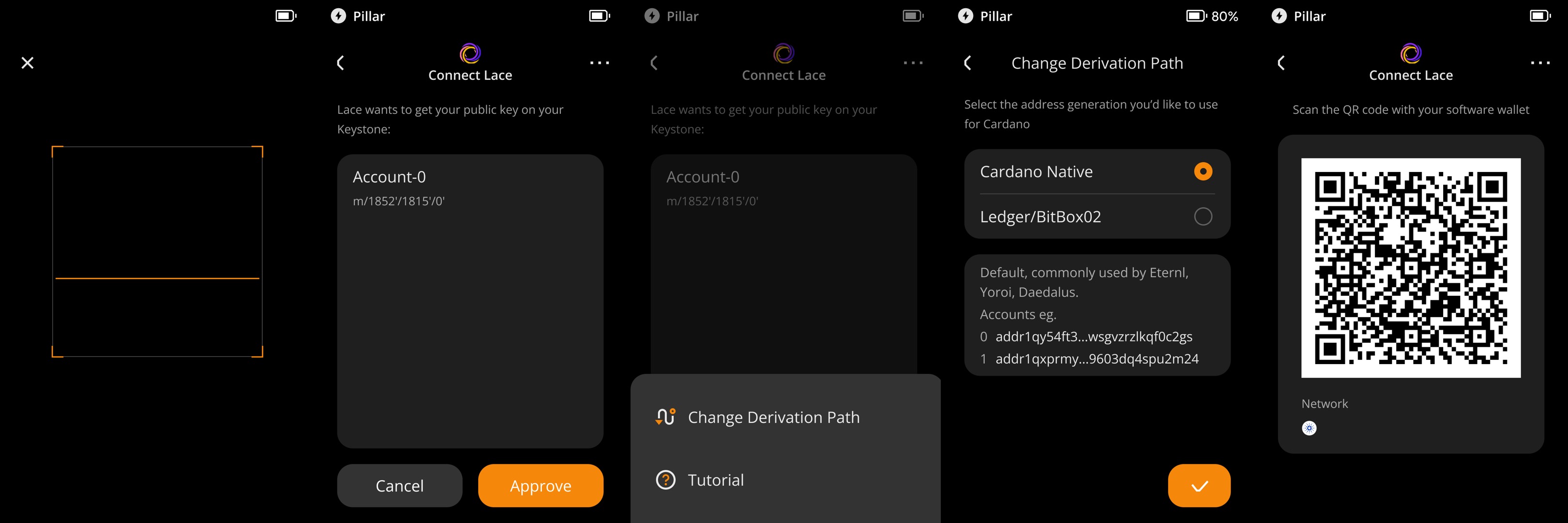
Back on Lace:
- Use the Lace wallet to scan the QR code generated by Keystone;
- Congratulations! You have successfully connected your Keystone Cardano(ADA) account to Lace!
Manage BTC Assets via Lace
On Lace:
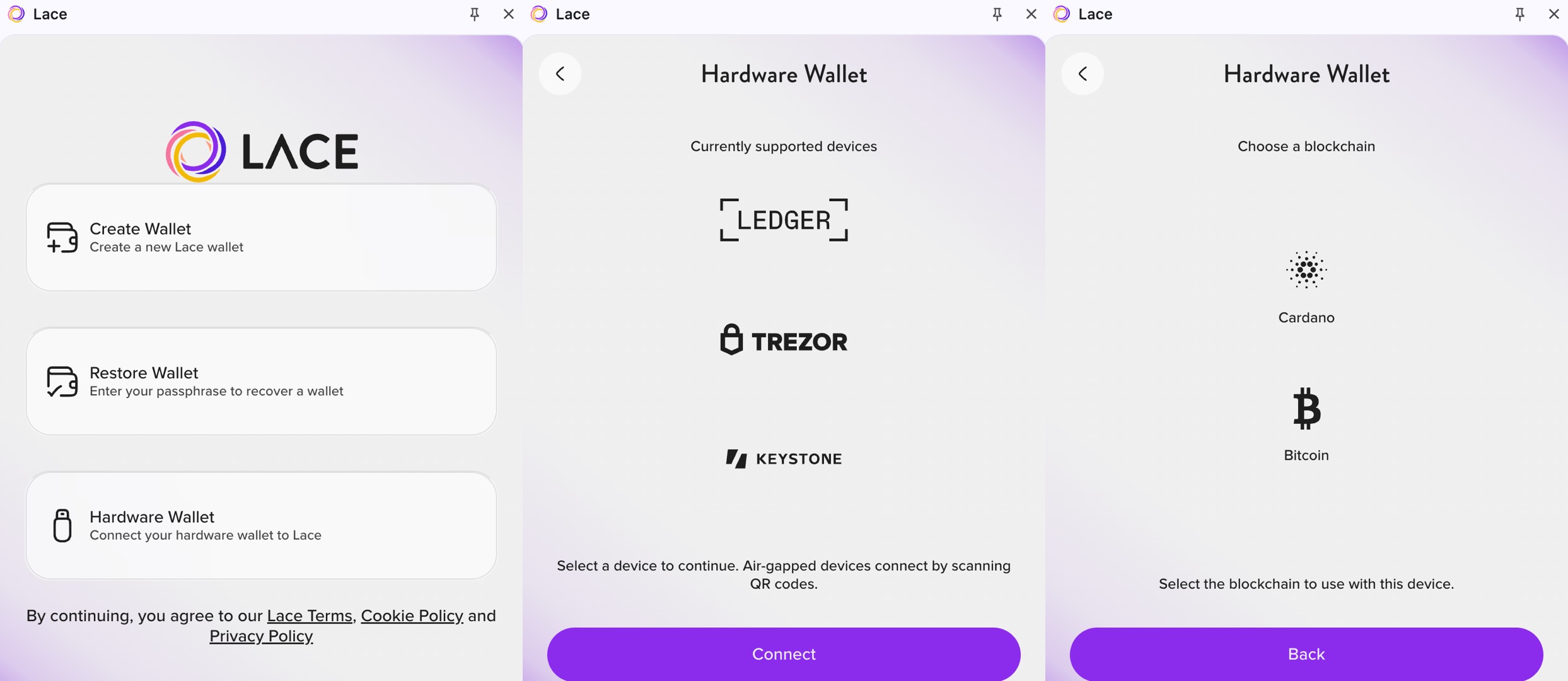
- Click [Hardware Wallet]
- Select [Keystone]
- Select the Bitcoin blockchain to manage your BTC assets. Lace will request camera access to scan the QR code displayed on Keystone
On Your Keystone Hardware Wallet:
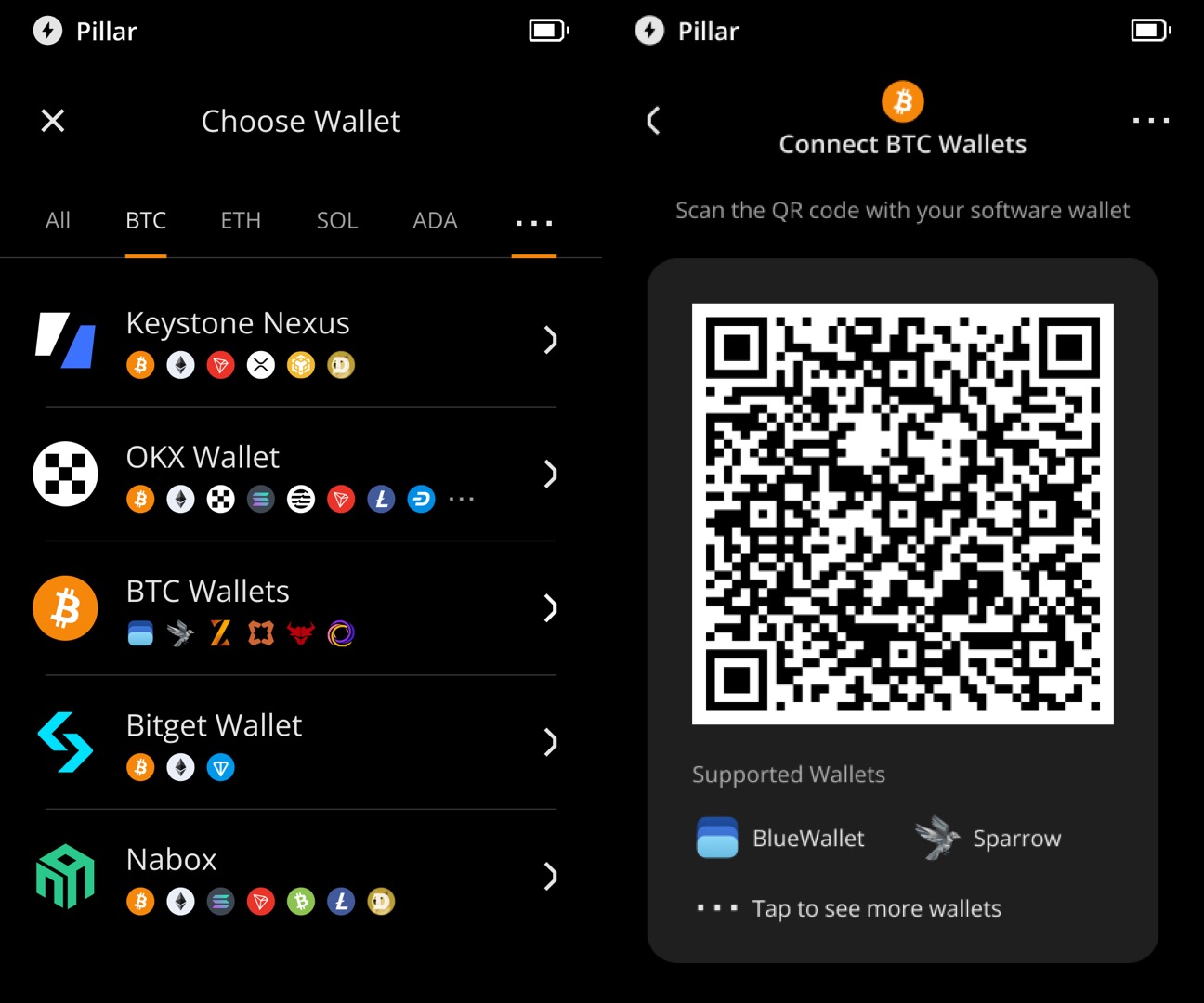
- Find [Connect BTC Wallets] in the list of software wallets
- Have Lace scan the displayed QR code to complete the connection!
tip
Security Note: To protect your assets, we recommend comparing the address displayed in Lace with the address generated on your Keystone 3 Pro device after the connection is complete, and making sure the two addresses match exactly. Also, do not scan any external QR codes that were not generated by your Keystone device.